GPT Image 1.5 vs RemoveTexts
Side-by-side comparison to help you choose the right AI tool.

GPT Image 1.5
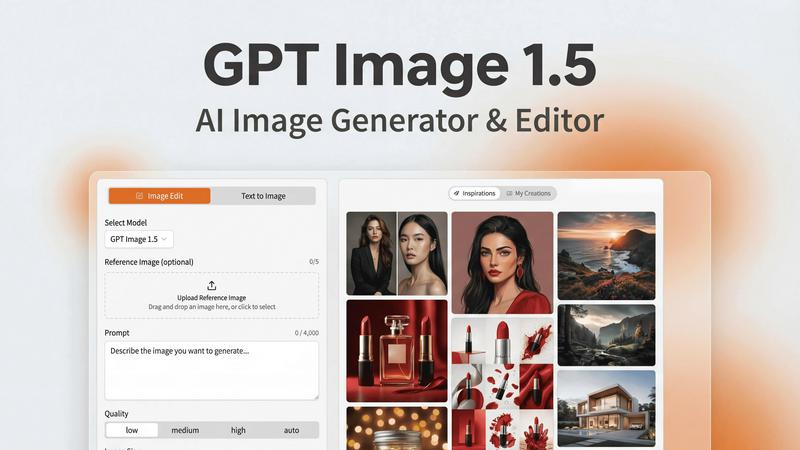
Create stunning photorealistic images and edit with lightning speed using GPT Image 1.5, OpenAI's next-gen AI tool.
Last updated: February 26, 2026

RemoveTexts
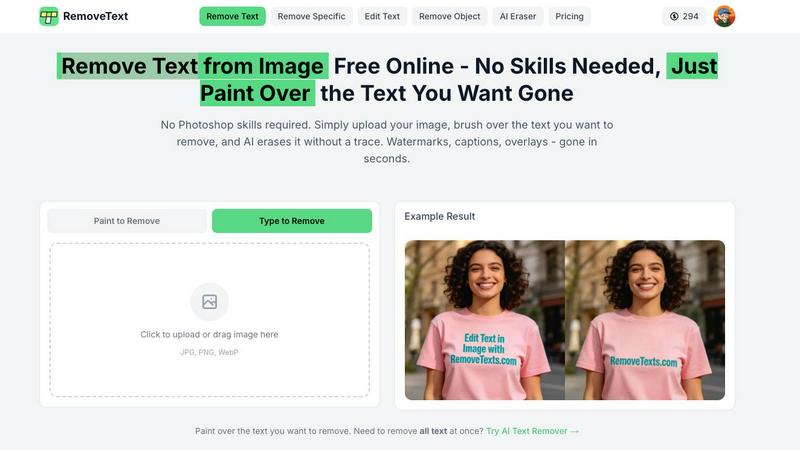
RemoveTexts lets you zap unwanted text from images in seconds with a simple brush, delivering flawless results without any design skills needed.
Last updated: March 11, 2026
Visual Comparison
GPT Image 1.5
RemoveTexts
Feature Comparison
GPT Image 1.5
Lightning-Fast Generation
Experience image generation that is up to 4x faster than its predecessors. GPT Image 1.5 prioritizes speed without sacrificing quality, allowing users to iterate rapidly and meet tight deadlines without breaking a sweat.
Advanced Text Rendering
The enhanced text rendering capabilities ensure your visuals feature crisp lettering and layout consistency. This is crucial for projects that demand precision, like infographics or marketing materials laden with textual information.
Precise Image Editing
Edit images with surgical precision. Whether it’s for retouching photos, removing unwanted objects, or applying style filters, GPT Image 1.5 allows you to modify specific elements while preserving the overall integrity of your visual.
Iterative Refinement
The iterative refinement feature lets you fine-tune your images with context-aware follow-ups. You can start broad and drill down to specifics, ensuring that the final output aligns perfectly with your vision.
RemoveTexts
Paint to Remove
This feature empowers you with precision control. Simply brush over the specific areas of text you want to eliminate, and let the AI do the heavy lifting. It’s perfect for targeting specific words or phrases without affecting the surrounding elements, giving you complete creative freedom.
Auto Remove All
Why waste time on manual editing? With Auto Remove All, the AI automatically detects and removes every text element in your image. Whether it's a pesky watermark or an unwanted caption, this feature clears the slate in one click, saving you precious time and effort.
Edit & Replace Text
Want to change the text but keep the vibe? This feature allows you to replace existing text with new content while matching the original style. It’s ideal for those looking to customize their visuals without losing the essence of the original design.
Remove Objects
Sometimes, unwanted objects can clutter your images. With the Remove Objects feature, you can effortlessly erase logos, people, or any visual elements that detract from your message. The AI fills in the gaps seamlessly, ensuring your image stays professional and polished.
Use Cases
GPT Image 1.5
Marketing Campaigns
Create compelling visuals for your marketing campaigns that catch the eye and convey your message effectively. Use GPT Image 1.5 to generate stunning graphics that resonate with your target audience.
UI/UX Design
Designers can harness GPT Image 1.5 to create high-fidelity mockups for applications or websites. The tool's precision and speed enable rapid prototyping, allowing for quick adjustments based on user feedback.
Infographics Development
Transform complex data into engaging infographics that are easy to understand and visually appealing. GPT Image 1.5 helps you create graphics that effectively communicate your information while maintaining aesthetic appeal.
Product Photography
Develop photorealistic images for your products that stand out in online listings or promotional materials. GPT Image 1.5 produces high-quality visuals that enhance your brand image and attract potential customers.
RemoveTexts
E-commerce Enhancements
Online sellers can use RemoveTexts to clean up product images by removing distracting watermarks or text overlays. This makes listings more appealing and professional, ultimately driving sales and enhancing brand image.
Social Media Magic
Content creators can effortlessly remove unwanted text from their visuals for platforms like Instagram or TikTok. Whether it’s a meme caption or a date stamp, this tool ensures your posts look top-notch, maximizing engagement.
Legal Document Redaction
Legal professionals can utilize RemoveTexts for redacting sensitive information from images or documents. The AI ensures that no trace of the text remains, allowing for secure sharing of necessary visuals without compromising privacy.
Academic and Research Use
Students and researchers can leverage RemoveTexts to clean up images for presentations or papers. By removing distracting texts or watermarks, their visuals become clearer and more impactful, enhancing the overall quality of their work.
Overview
About GPT Image 1.5
GPT Image 1.5 is your ultimate AI image studio, a powerhouse designed to transform the way professionals create and edit visuals. Powered by OpenAI's state-of-the-art gpt-image-1.5 model, this tool is crafted for those who demand high-quality, production-ready images without the headaches of coding or complex software. Whether you are a graphic designer looking to iterate on designs, a marketer in need of eye-catching campaign assets, or a developer incorporating stunning visuals into applications, GPT Image 1.5 is your go-to solution. The platform excels in realism, text accuracy, and editability, making it ideal for marketing materials, UI/UX mockups, infographics, and product photography. With its intuitive web interface, GPT Image 1.5 allows users to seamlessly translate simple ideas into polished final outputs, eliminating barriers and enhancing creative workflows. Get ready to unleash your creativity with a tool that is as powerful as it is user-friendly.
About RemoveTexts
RemoveTexts is your ultimate sidekick for image editing, transforming the way you interact with visuals. Gone are the days of clunky software and tedious manual edits. This AI-powered tool lets you zap unwanted text, watermarks, and overlays from your images with just a flick of the brush. Whether you're a designer, marketer, or casual creator, RemoveTexts delivers clean, professional results in seconds. It’s as easy as uploading your image, painting over the text, and letting the magic happen. With advanced deep learning technology, it reconstructs backgrounds seamlessly, ensuring that the result looks pristine. Trusted by over 100,000 users globally, RemoveTexts is a game-changer for anyone who wants to keep their visuals sharp and clean, without breaking a sweat or learning complex software. Dive into a world of effortless editing and let your creativity shine without distractions.
Frequently Asked Questions
GPT Image 1.5 FAQ
How does GPT Image 1.5 differ from previous versions?
GPT Image 1.5 boasts significant improvements in speed, realism, and text accuracy compared to its predecessors. This means you can create more detailed and refined images in a fraction of the time.
Can I use GPT Image 1.5 for commercial purposes?
Absolutely! GPT Image 1.5 is designed for professional use, making it an excellent tool for individuals and businesses looking to produce high-quality visuals for commercial projects.
What types of images can I create with GPT Image 1.5?
With GPT Image 1.5, you can create a variety of images including logos, infographics, product photos, and UI/UX mockups. The versatility of the tool makes it suitable for a wide range of creative tasks.
Is there a learning curve for using GPT Image 1.5?
Not at all! The intuitive web interface of GPT Image 1.5 makes it user-friendly, allowing you to focus on your creativity rather than complex software navigation. You can dive right in and start generating stunning visuals.
RemoveTexts FAQ
How does RemoveTexts work?
RemoveTexts uses advanced AI and deep learning inpainting technology to intelligently analyze surrounding pixels. It reconstructs the background seamlessly after removing text, ensuring professional-grade results without any visible traces.
What image formats does RemoveTexts support?
You can upload images in JPG, PNG, and WebP formats, making it versatile for various use cases. Just ensure that your image is under 10 MB for optimal performance.
Can I remove watermarks from my images?
Yes, RemoveTexts is specifically designed to tackle watermarks, captions, and overlays. Just paint over the watermark, and the AI will take care of the rest, providing a clean finish.
Is there a limit to how many images I can process?
While there is no specified limit on the number of images you can process, each image must adhere to the size and format guidelines. Enjoy the freedom to clean as many images as you need without any hassle!
Alternatives
GPT Image 1.5 Alternatives
GPT Image 1.5 is a powerhouse in the AI image generation scene, leveraging OpenAI’s latest tech to deliver jaw-dropping, photorealistic visuals. It falls under the category of AI Assistants and Avatars, targeting creatives who demand high-quality, editable images without the hassle of complex coding or software. However, users often find themselves scouting for alternatives due to factors like pricing, unique features, or specific platform compatibility that may better suit their workflows or budget constraints. When hunting for an alternative, it’s crucial to assess the balance between image quality and ease of use, along with any additional features that might elevate your creative game. Look for platforms that offer a user-friendly interface, a range of editing tools, and a solid reputation in terms of image output. Ultimately, the right choice will align seamlessly with your creative needs, making your journey from concept to final product smoother and more enjoyable.
RemoveTexts Alternatives
RemoveTexts is an AI-powered image editing tool that specializes in erasing unwanted text from images without the need for complex software like Photoshop. Users upload their images and, with just a click, they can remove watermarks, subtitles, and other text overlays, all while maintaining the integrity of the original background. This tool falls under the category of image and photo editing, catering to creators, marketers, and designers who want fast, efficient results. People often seek alternatives to RemoveTexts due to various factors such as pricing, specific feature sets, or platform compatibility. Some users might require different editing capabilities or prefer a tool that aligns better with their workflow. When searching for an alternative, consider aspects like ease of use, output quality, supported languages, and the ability to edit or replace text, ensuring it meets your specific needs and enhances your creative process.